Server Installation on Linux

Install SysRanger Server on Linux
Verified on standard SUSE Linux Enterprise Server 16.0 (x86_64) with SysRanger Server 0.1.229 on 26 November 2026.
Select any screenshot to open the full-size image.
1. Open a terminal
Open a console or SSH session on the Linux server and obtain a root shell. The installer creates and starts a systemd service and downloads files over HTTPS. Confirm that wget and tar are available before starting. The Linux package supplies its own Java runtime.
id -un
hostname
command -v wget tar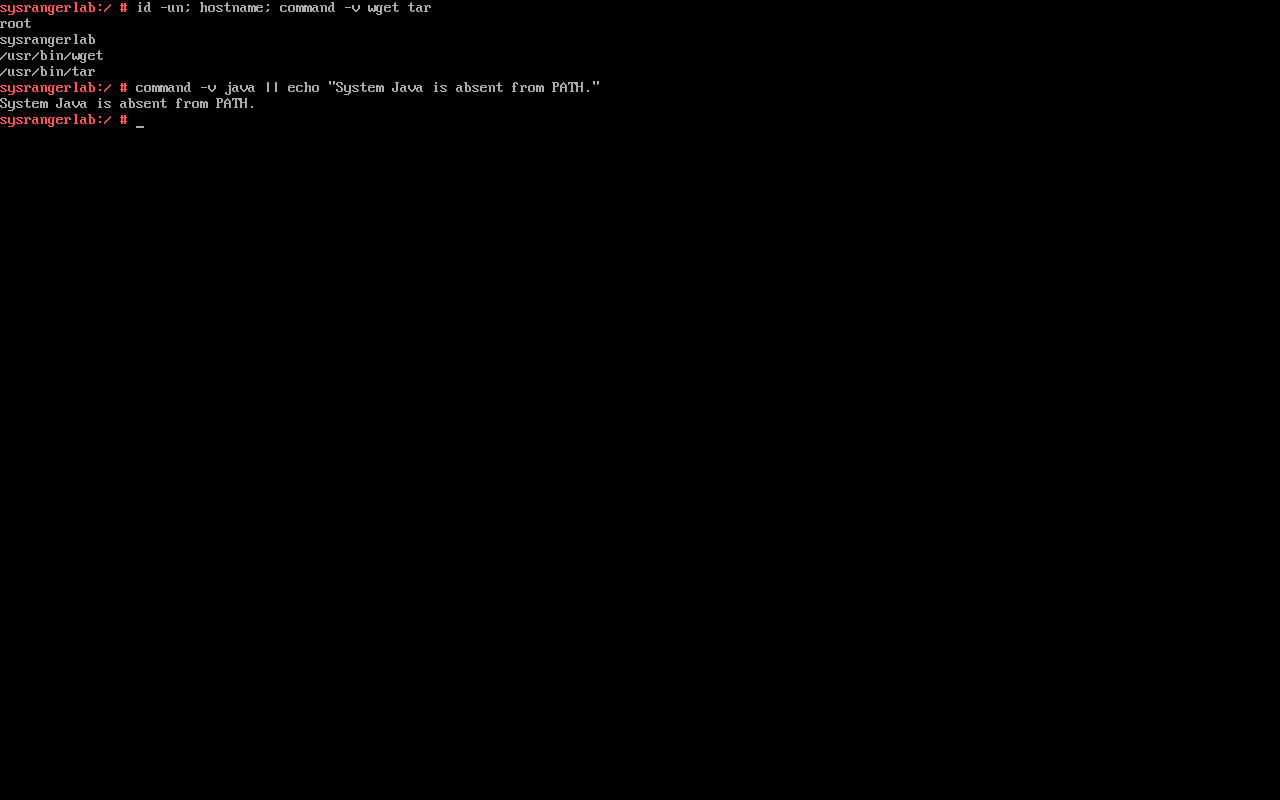
2. Create the installation directory
The installer writes into the current directory. Create the example directory from the downloads page, enter it, and verify the path before downloading.
mkdir -p /usr/apps/sysranger/server
cd /usr/apps/sysranger/server
pwd
/usr/apps/sysranger/server.3. Download and run the official installer
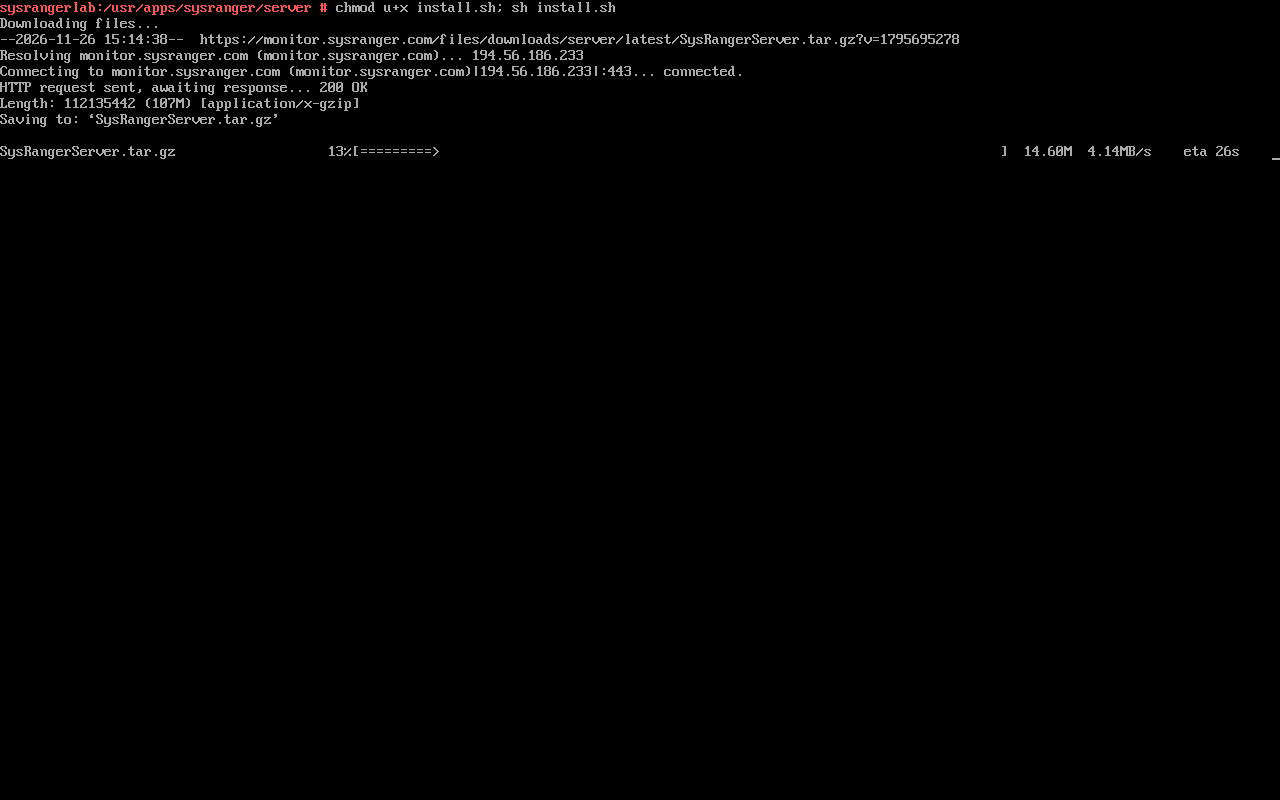
Use the commands under Server Linux Install. SysRanger downloads
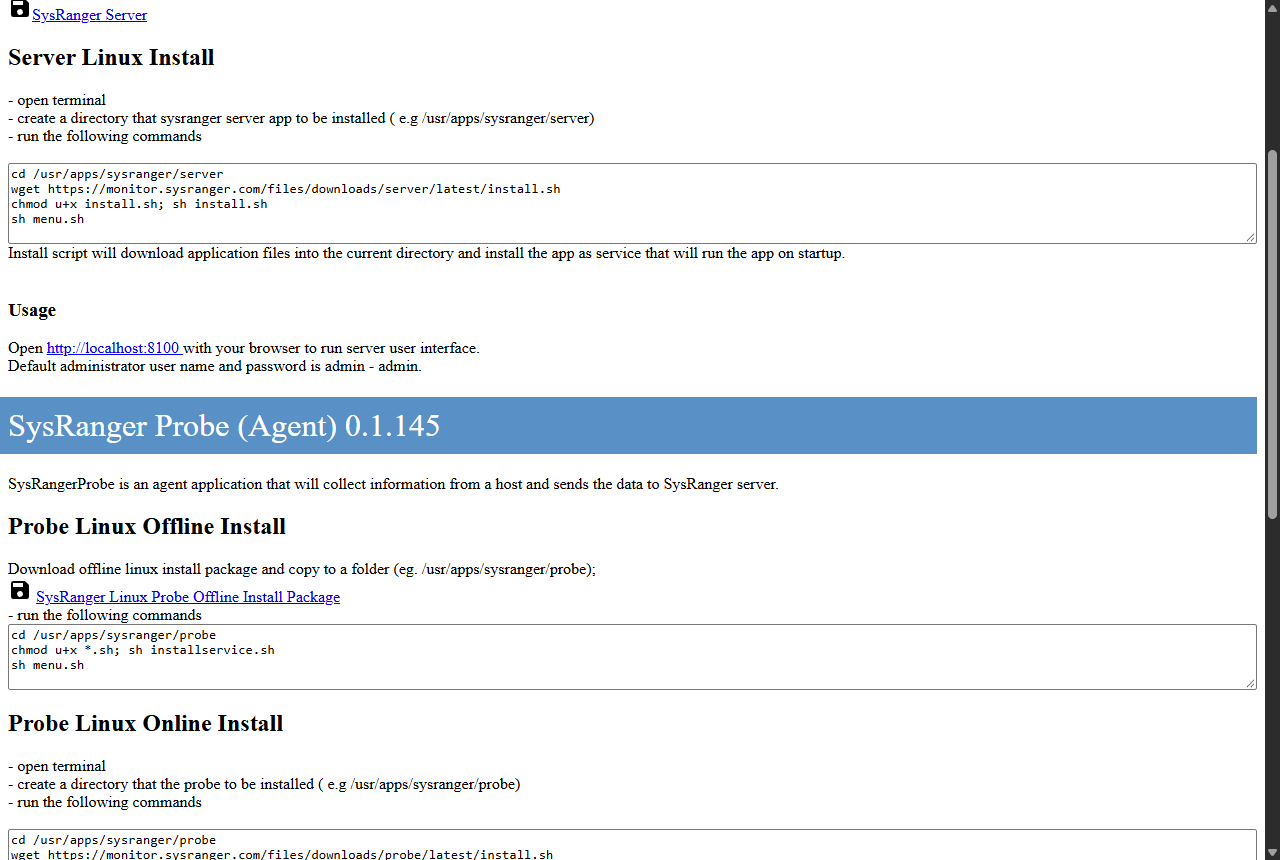
wget https://monitor.sysranger.com/files/downloads/server/latest/install.sh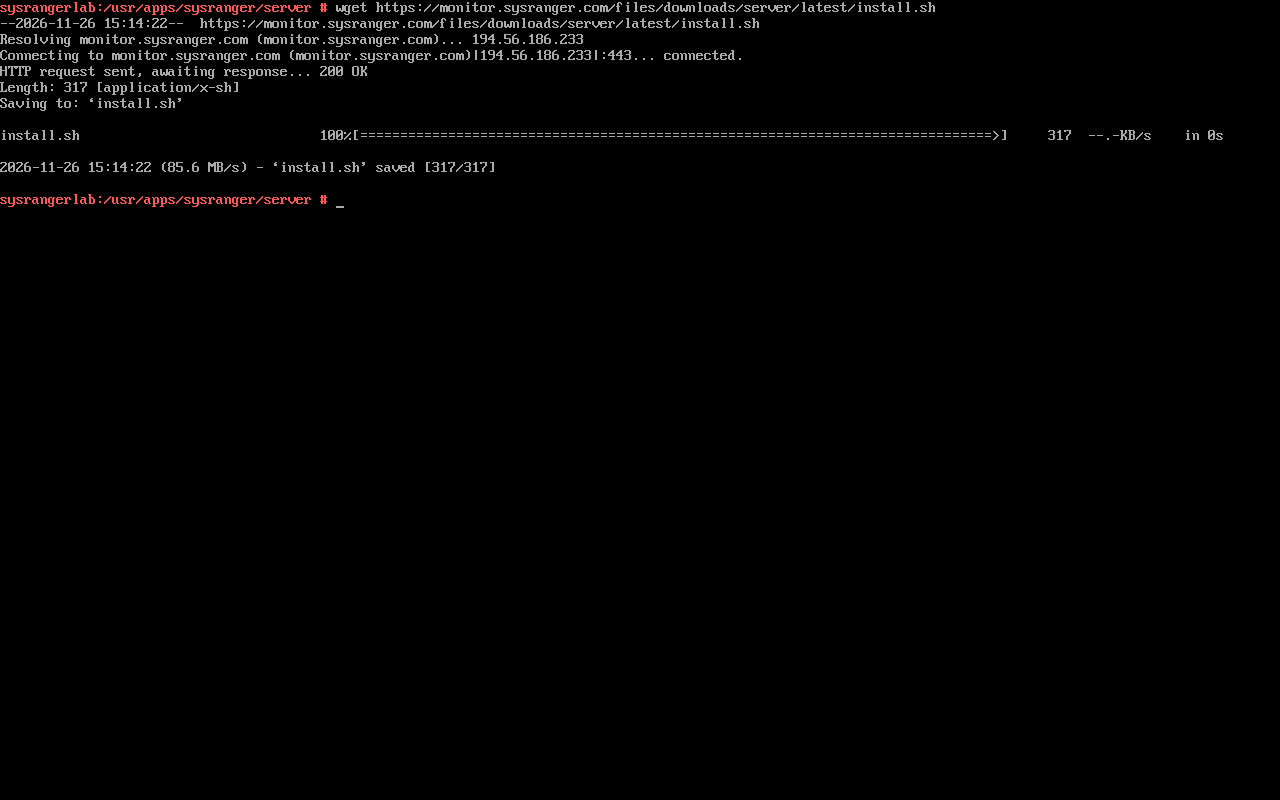
wget saves the installer as install.sh.chmod u+x install.sh; sh install.shWait for the archive download and extraction to finish. The script then registers and starts sysranger.service with the Java runtime under jrex.
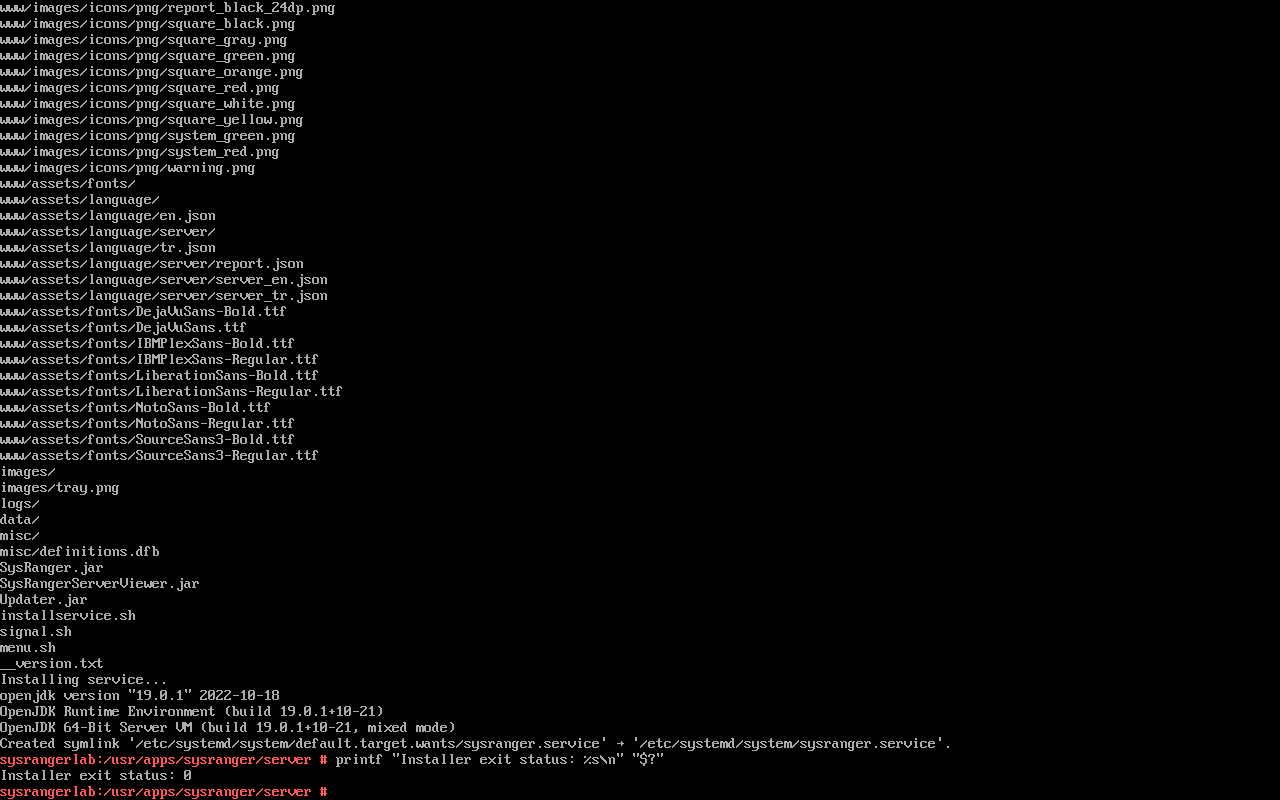
0.4. Verify the bundled Java runtime
From the installation directory, run jrex/bin/java to check the bundled runtime. The installer marks both Java and its process-launch helper executable.
jrex/bin/java -version
test -x jrex/lib/jspawnhelper
cat __version.txt
5. Open the server menu and verify the service
cd /usr/apps/sysranger/server
sh menu.sh
Enter 1 for Status and look for active (running). Press q to leave the status viewer if it opens in a pager. Enter 0 to quit the menu.
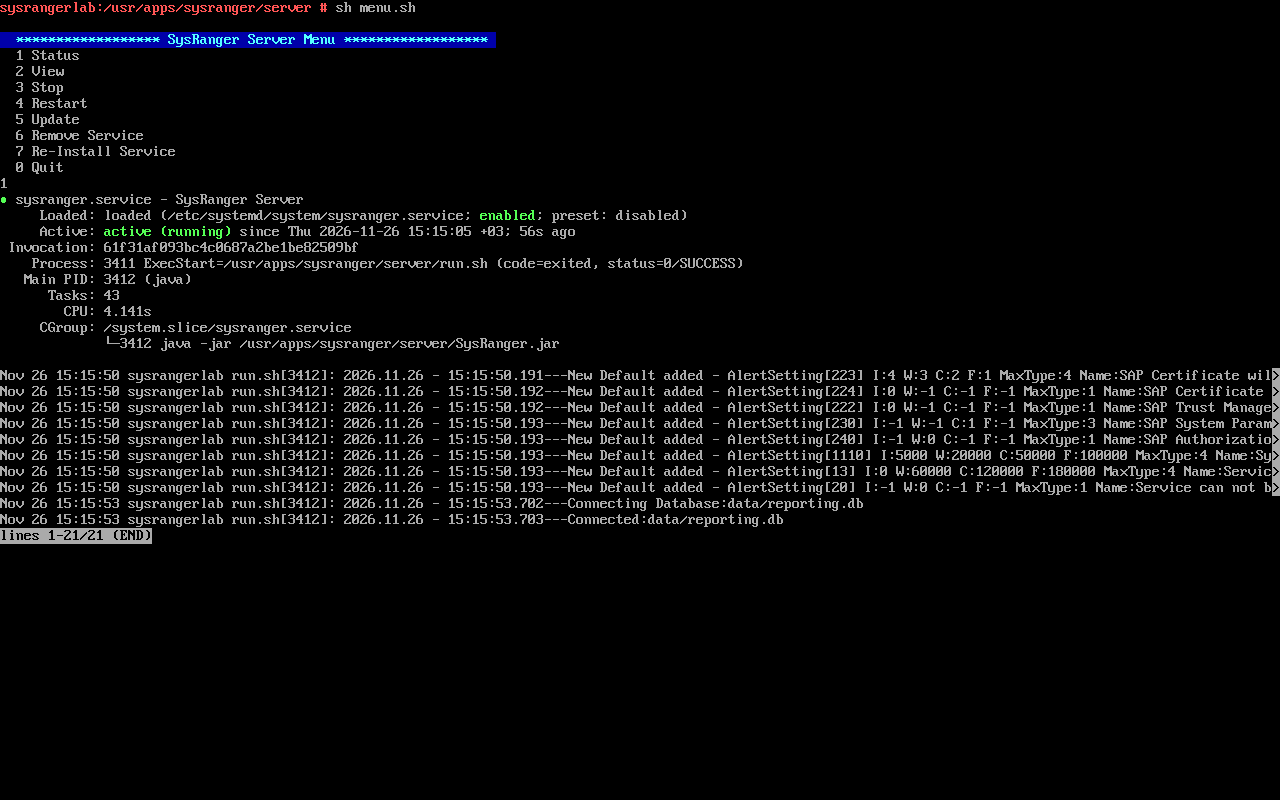
Wait for first-start initialization, then check that the service is enabled and active, runs jrex/bin/java, and listens on TCP 8100.
systemctl is-enabled sysranger.service
systemctl is-active sysranger.service
readlink -f /proc/"$(systemctl show -p MainPID --value sysranger.service)"/exe
ss -ltnp | grep :8100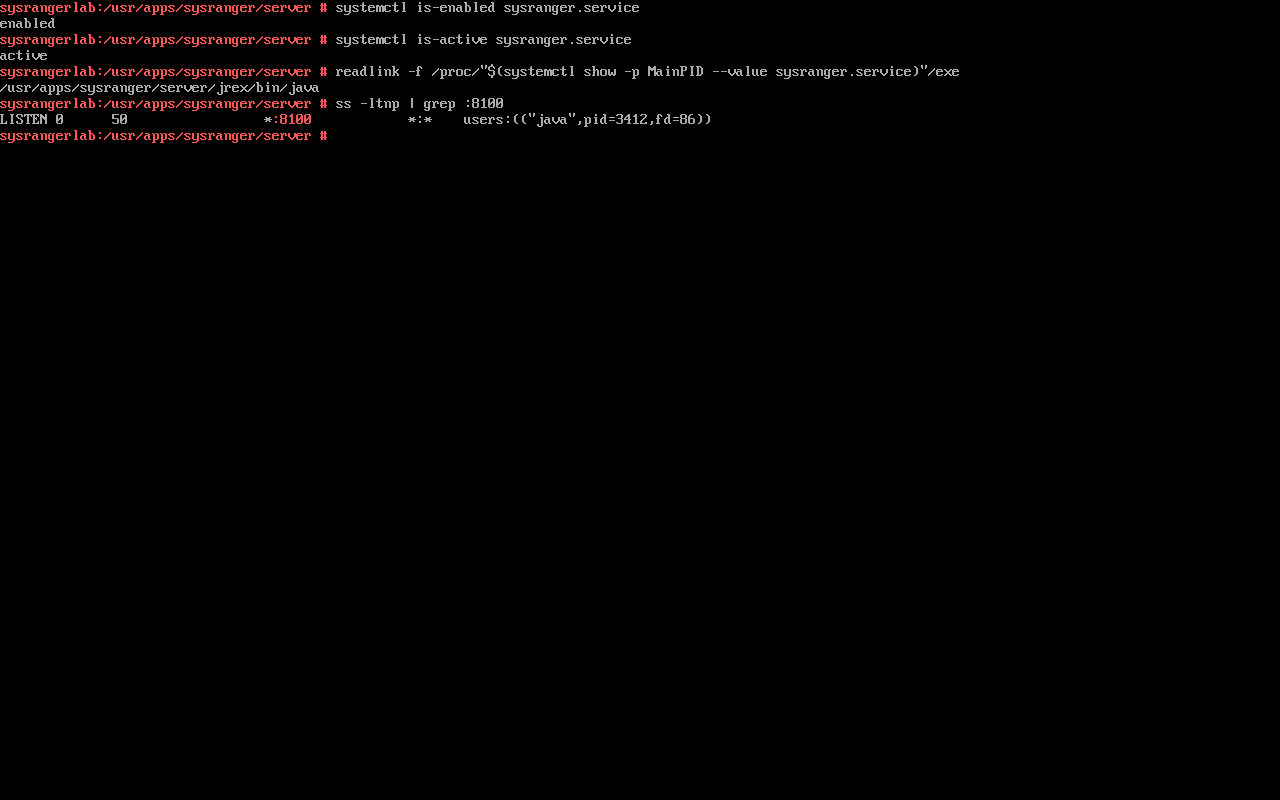
enabled and active. The bundled Java process is listening on port 8100.6. Open the web UI and sign in
On the Linux server, use http://localhost:8100/. From another machine, use the server’s hostname or IP address on port 8100. The screenshots use http://sysrangerlab:8100/.
Enter admin for the username and admin for the default password, then select Sign in. A successful first sign-in opens Inventory. Change the default admin password before giving other users access.
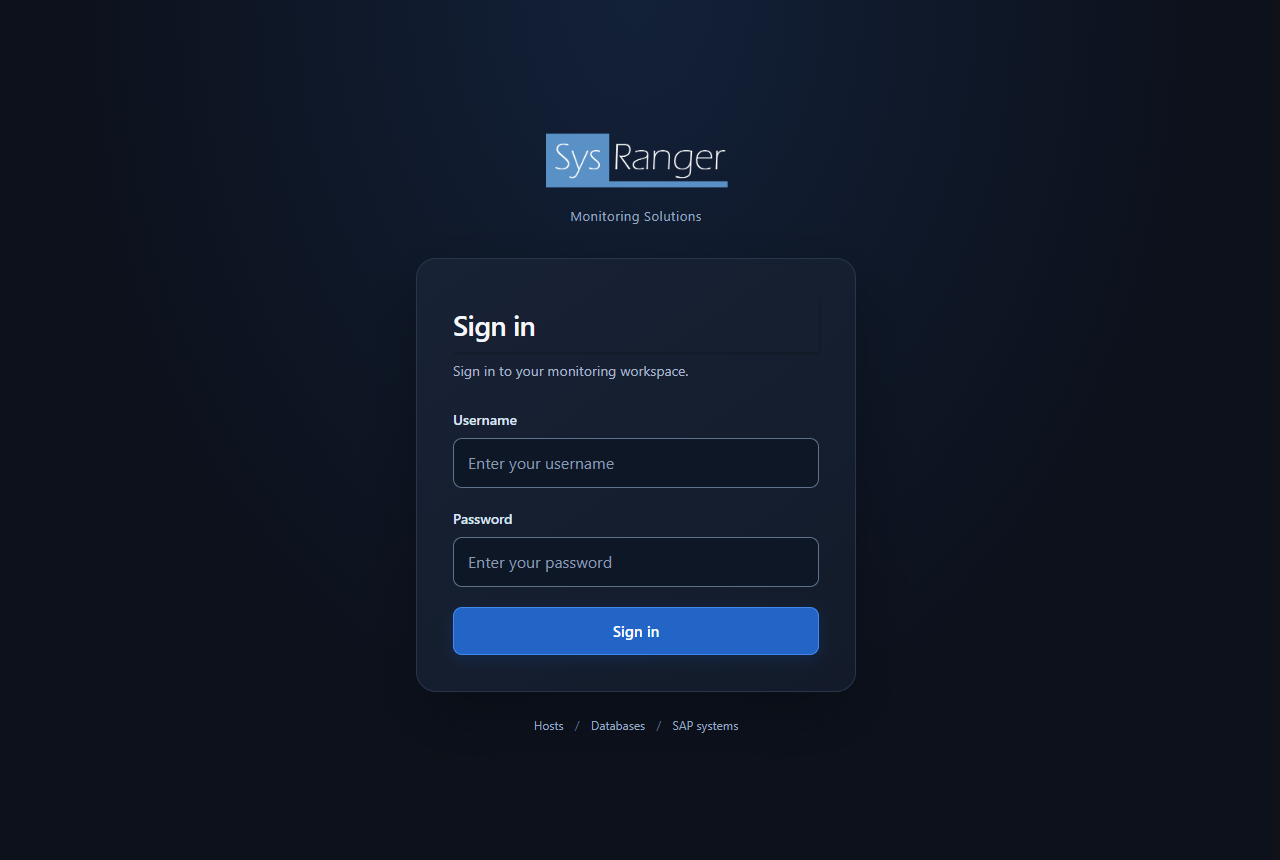
http://sysrangerlab:8100/.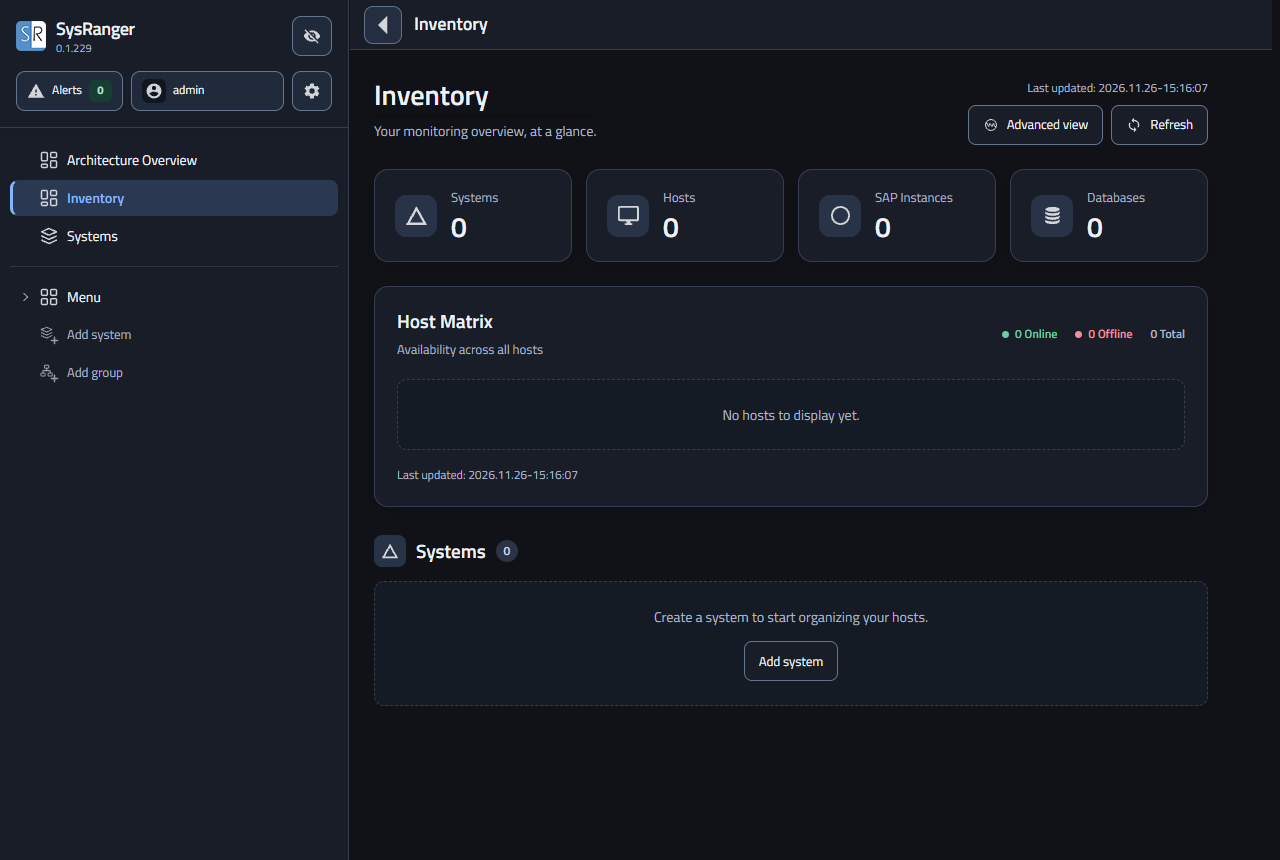
admin.7. Activate the license
Sign in as an administrator. The SysRanger team must assign the license to this server’s hardware key before you can activate it.
Open Settings
In the sidebar, select the arrow next to Menu to expand it, then select Settings.
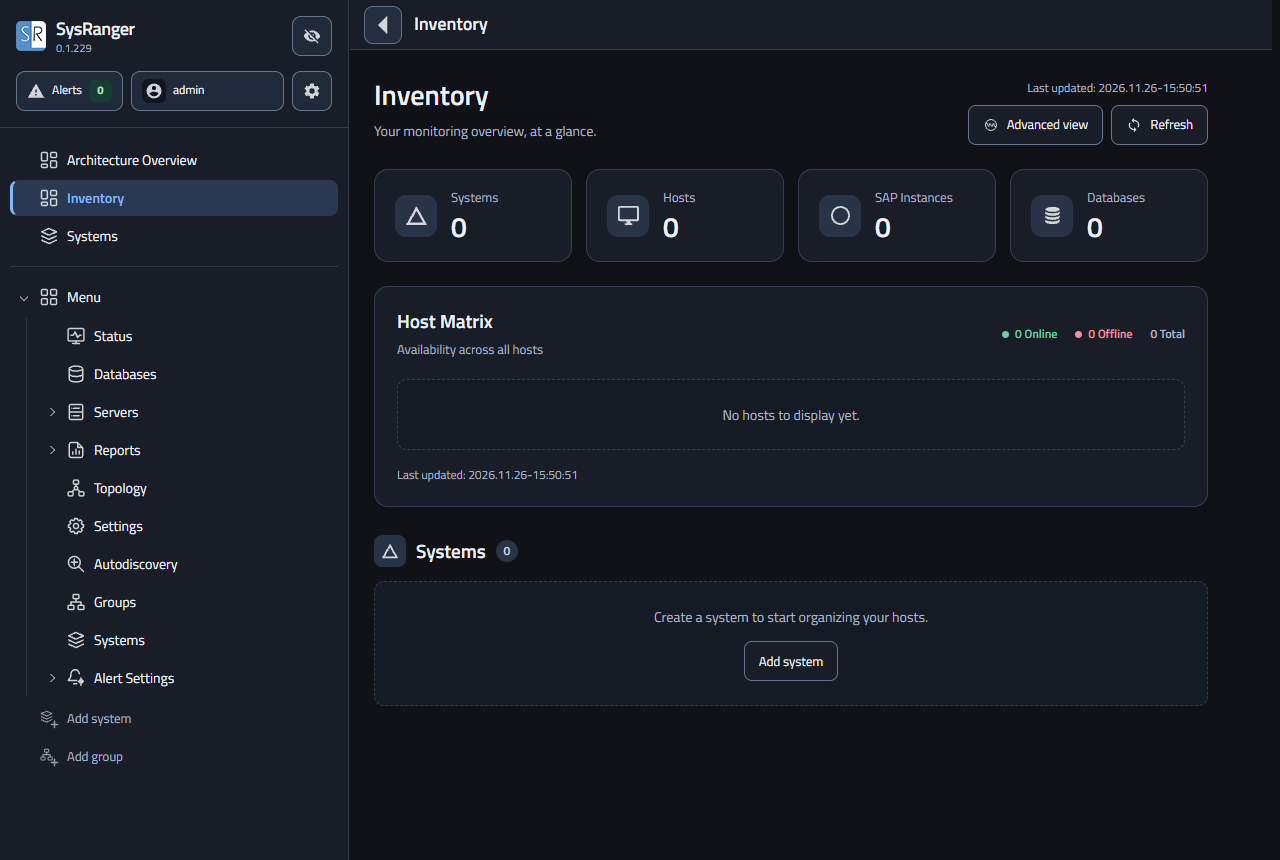
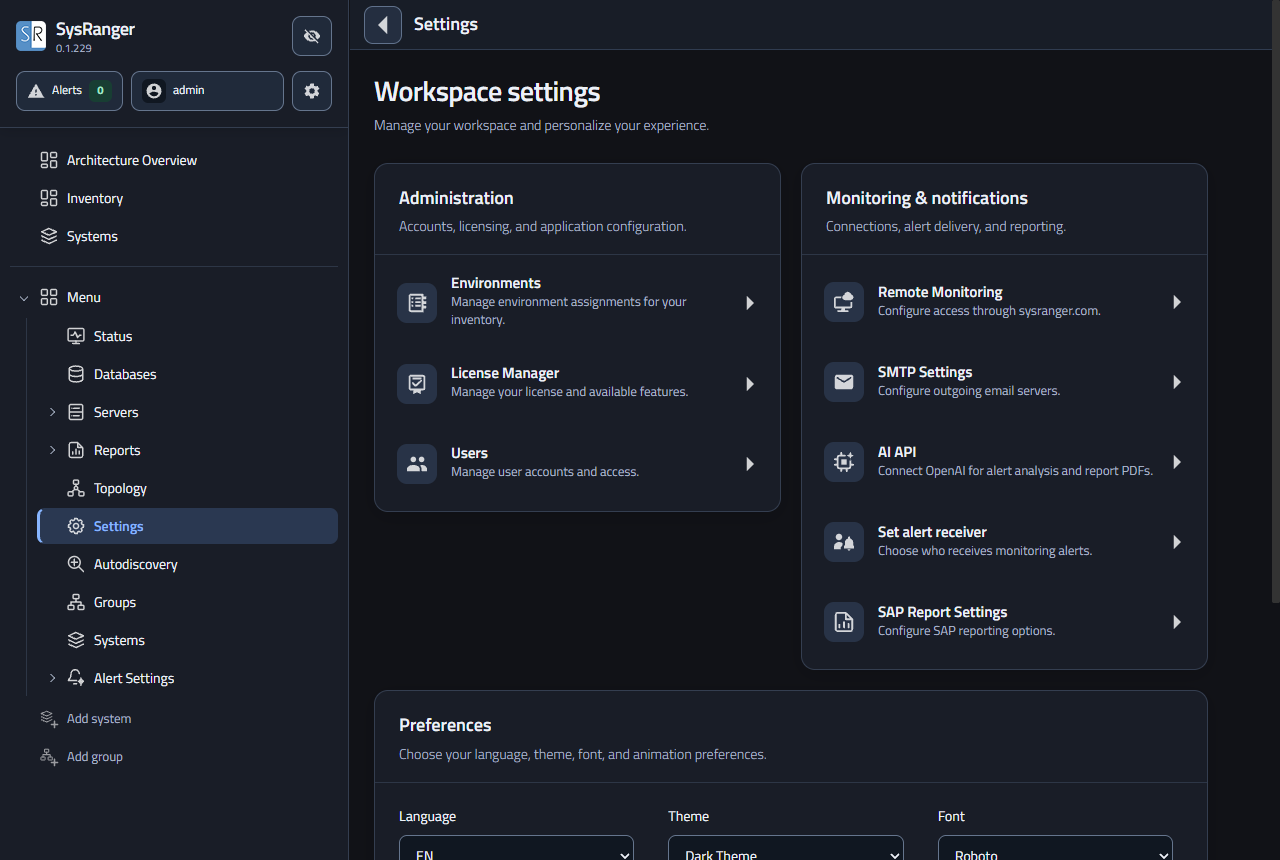
Open License Manager
Under Administration, select License Manager.
Activate the assigned license
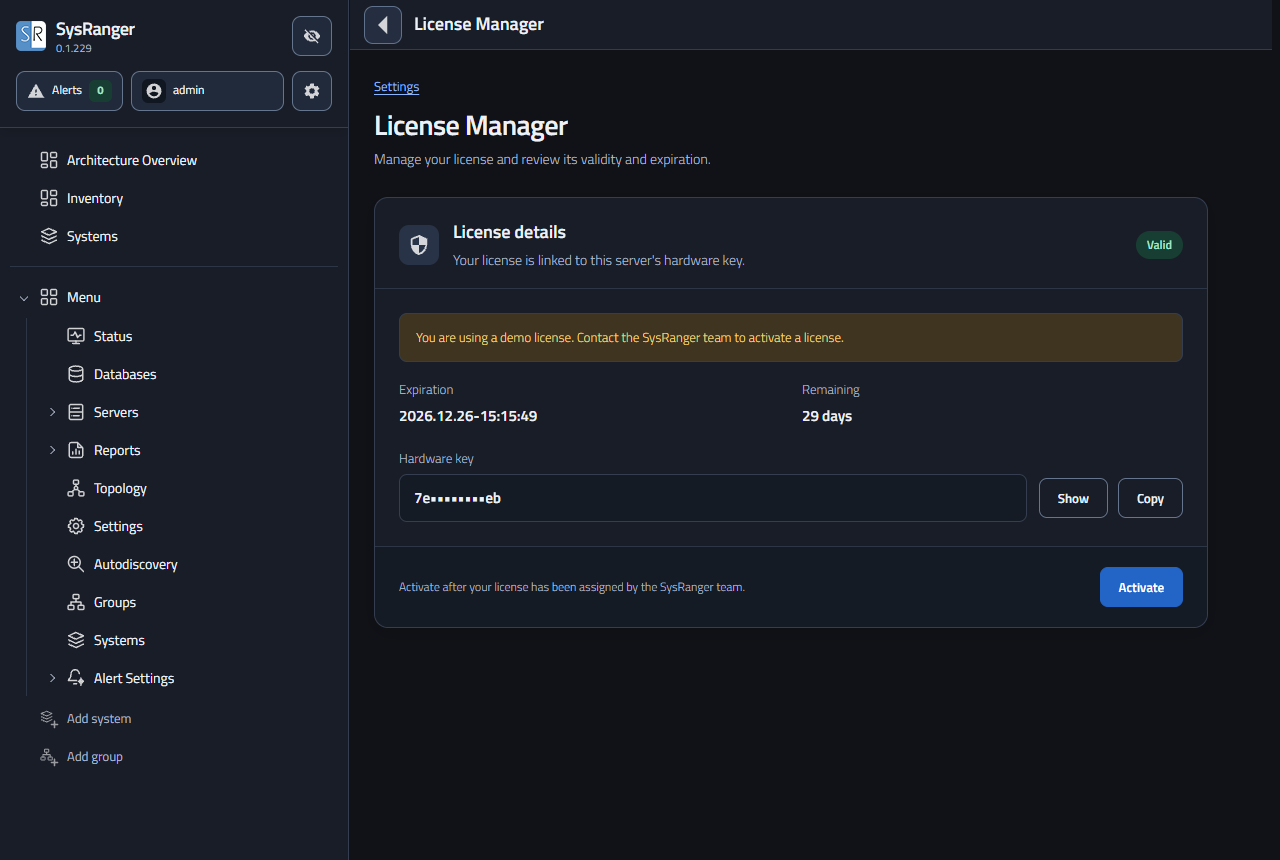
In License details, select Activate. A current demo license can also show the Valid badge. Check for the demo notice before activation.
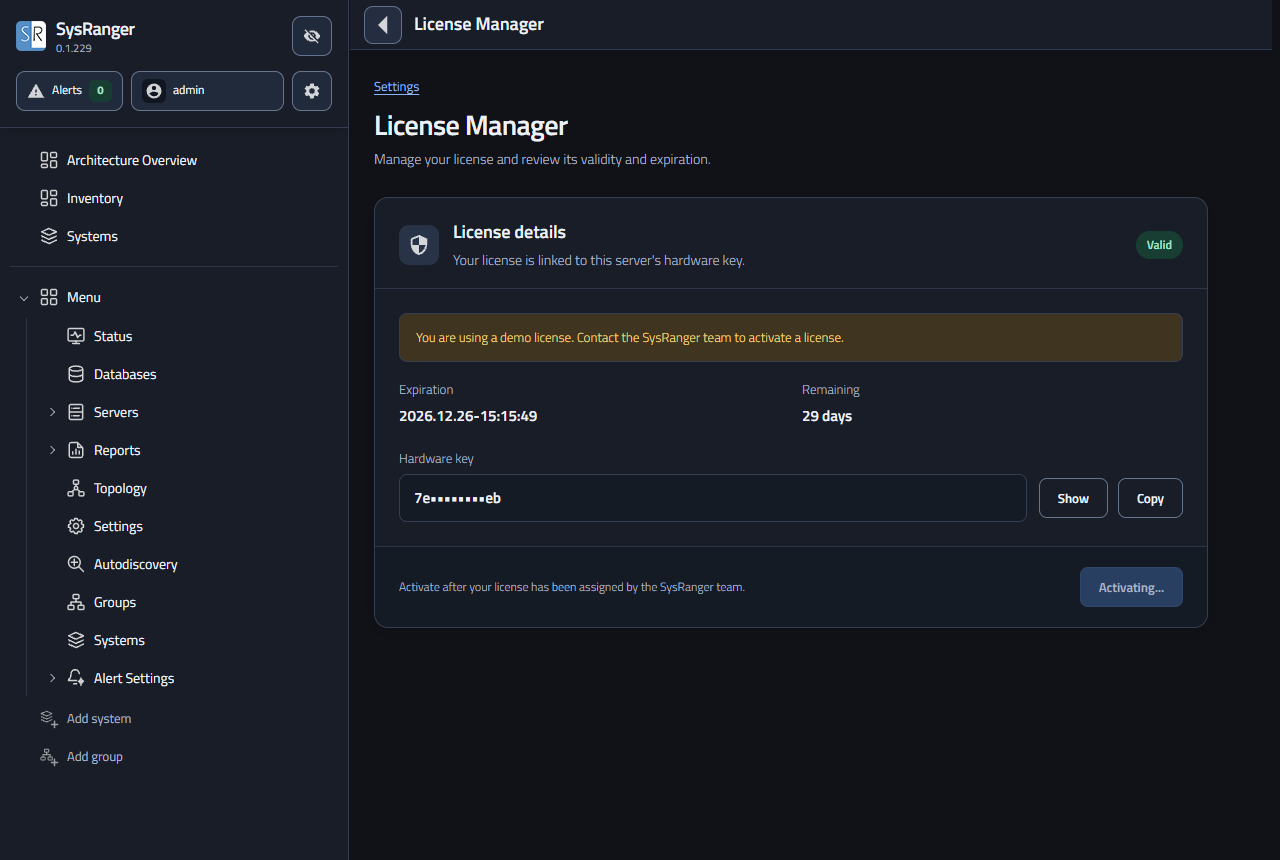
Wait while the button reads Activating.... License Manager refreshes after activation.
Verify the license
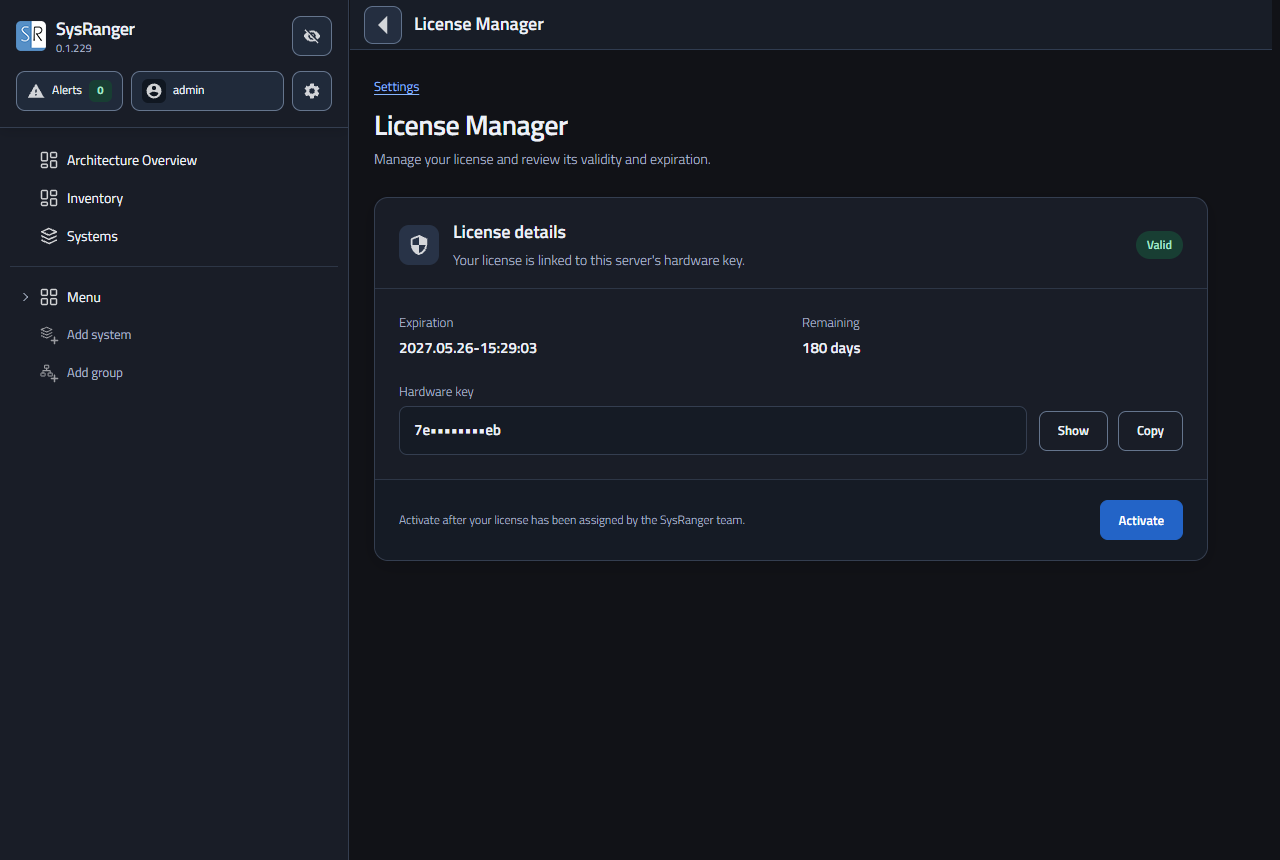
After the page refreshes, confirm the badge reads Valid, the demo notice has cleared, and Expiration matches the assigned license.
Troubleshooting
Check outbound connections
If your firewall restricts outbound traffic, allow these TCP connections from the SysRanger server for the features you use.
| Feature | Host and port |
|---|---|
| Updates, online license activation, SMS, and built-in email | monitor. on 443 (HTTPS) |
| Email through a custom SMTP relay | Your SMTP relay on its configured port |
| Remote Monitoring, when enabled | monitor. on 9350 (TLS) |
The SysRanger server downloads its own updates and the Probe packages it distributes from monitor.sysranger.com over HTTPS.
SysRanger tries its configured SMTP relays first. If none are configured or all fail, SysRanger sends through its built-in email service over TCP 443.
Allow the client through the firewall if needed
If the service answers locally and the browser on another machine times out, check the guest firewall for inbound connections to TCP 8100. This lab used firewalld’s public zone and allowed that port only from the Windows test host at 192.168.1.150. Substitute your client IP and the zone for the guest’s network interface.
firewall-cmd --get-active-zones
rule='rule family="ipv4" source address="192.168.1.150/32" port port="8100" protocol="tcp" accept'
firewall-cmd --zone=public --add-rich-rule="$rule"
firewall-cmd --permanent --zone=public --add-rich-rule="$rule"
firewall-cmd --zone=public --list-rich-rules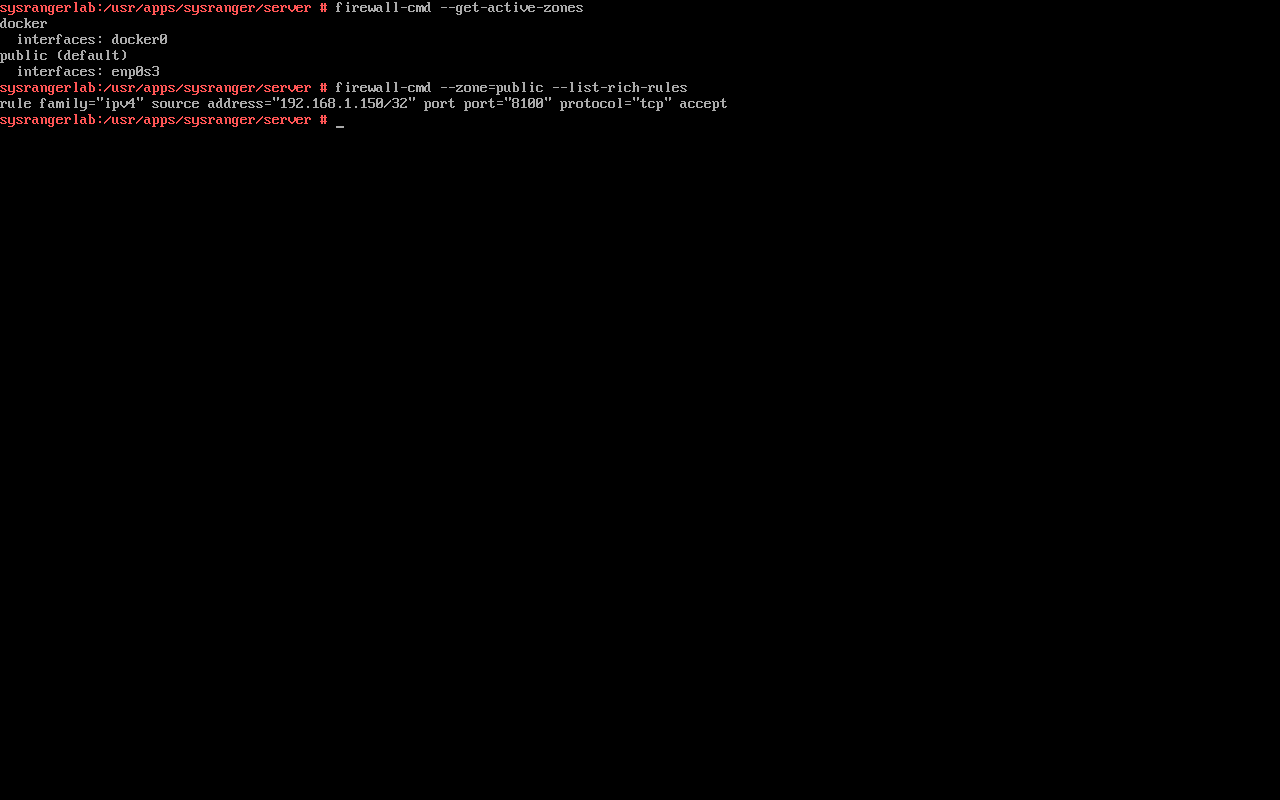
8100 from the Windows host.Monitoring connectivity
Probe. Each Probe initiates a connection to the SysRanger server on TCP 8300 for monitoring. For server-managed Probe updates, each Probe also connects to the server on TCP 8100. Use the configured ports if you changed the defaults.
Reachability and name resolution. Test the Probe’s TCP connection to the server. If a monitored host shows as unreachable while its Probe is connected, check whether the SysRanger server can ping that host. Use DNS for configured hostnames. If DNS cannot resolve a name, add a local hosts-file entry on the machine initiating the connection.
SAP. The SysRanger server makes direct SAPControl calls for instance process checks on the configured instance port, typically TCP 5NN13, where NN is the two-digit instance number. Direct SAP Host Agent queries, such as reading a host’s SAP inventory, use TCP 1128. SAP Autodiscovery also checks the HTTPS ports 5NN14 and 1129. Probe-routed operations such as instance start and stop use local sockets or named pipes on the SAP host.
Databases. For direct database monitoring, allow the SysRanger server to connect to the database’s configured TCP listener. Common defaults are 1433 for the default SQL Server instance and 1521 for Oracle. Check the actual listener port for each database, including SAP ASE and SAP HANA.
-
15
Overly Successful Customer
-
137
Server
-
4568
Phone Call
-
12567
E-Mail